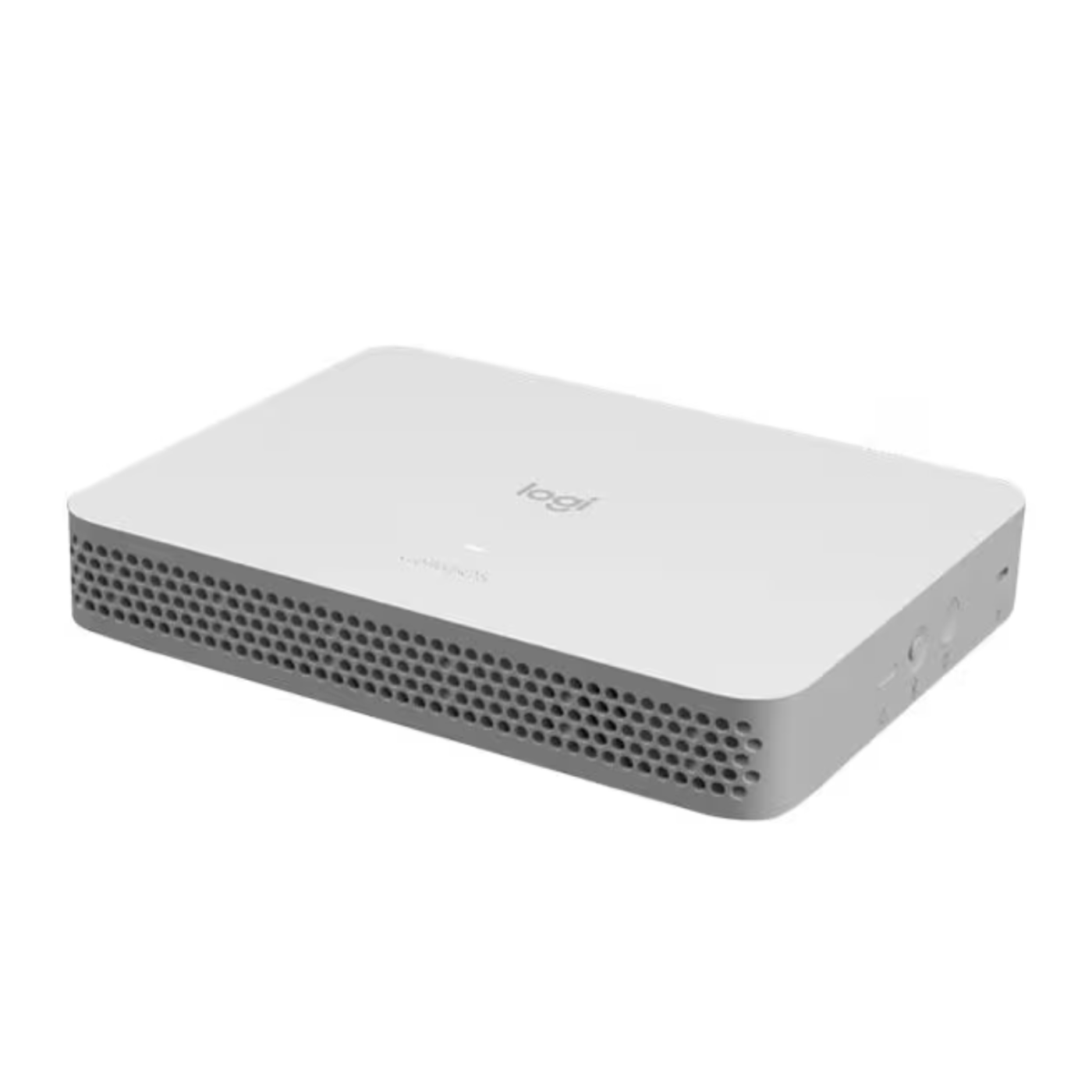
LOGITECH ROOMMATE - 950000081
LOGITECH ROOMMATE - 950000081
Couldn't load pickup availability

LOGITECH ROOMMATE - 950000081
LOGITECH ROOMMATE - 950000081
What our Experts Think
Q&A
Q: What is the Logitech RoomMate (950-000081)?
A: The Logitech RoomMate is a professional video conferencing computing appliance designed to power meeting rooms with compatible cameras, displays, and collaboration devices.
Q: What are the key features of Logitech RoomMate?
A: It provides a compact setup with CollabOS, HDMI display support, USB connectivity, device management, and compatibility with meeting room solutions.
Q: Can Logitech RoomMate run video meetings without a PC?
A: Yes. It is designed to enable appliance-based meeting rooms without requiring a separate computer.
Q: What devices work with the 950-000081 RoomMate?
A: It works with compatible conference cameras, controllers, displays, and approved audio solutions for complete meeting room setups.
Q: Is Logitech RoomMate compatible with Microsoft Teams and Zoom?
A: Yes. It supports meeting room platforms including Microsoft Teams Rooms and Zoom Rooms appliance deployments.
Q: Is the Logitech RoomMate suitable for business use?
A: Yes. It is designed for offices, conference rooms, training spaces, and hybrid collaboration environments.
Q: Who is the Logitech RoomMate best for?
A: It is ideal for organizations needing a secure, scalable, and flexible video conferencing room solution.
Maintenance Tips
- Clean regularly: Wipe the RoomMate housing with a soft microfiber cloth to remove dust and fingerprints.
- Keep ports clear: Check USB, HDMI, and network ports for dust buildup and avoid forcing cable connections.
- Maintain ventilation: Keep airflow openings free from dust and avoid blocking the device to prevent overheating.
- Check cables: Inspect power, HDMI, USB, and Ethernet connections periodically for secure operation.
- Update firmware: Keep CollabOS and connected Logitech room devices updated for better performance and compatibility.
- Inspect mounting: Ensure the device and mounting hardware remain secure, especially when installed behind displays or in carts.
- Manage connected devices: Confirm Rally, MeetUp, Tap, or other supported peripherals remain properly connected
- Prevent moisture damage: Keep liquids away from the unit and connectors.